Understanding the Email Timer Feature in Gmail
In the fast-paced digital world, effective communication is key to productivity. An email timer gmail feature allows users to control when their messages are delivered, providing more flexibility in how they manage their correspondence. This feature is particularly useful for professionals who wish to send emails at optimal times or maintain a healthy work-life balance by preparing messages ahead of time. In the following sections, we will explore what an email timer is, its benefits, and how it compares to traditional scheduling methods.
What is an Email Timer?
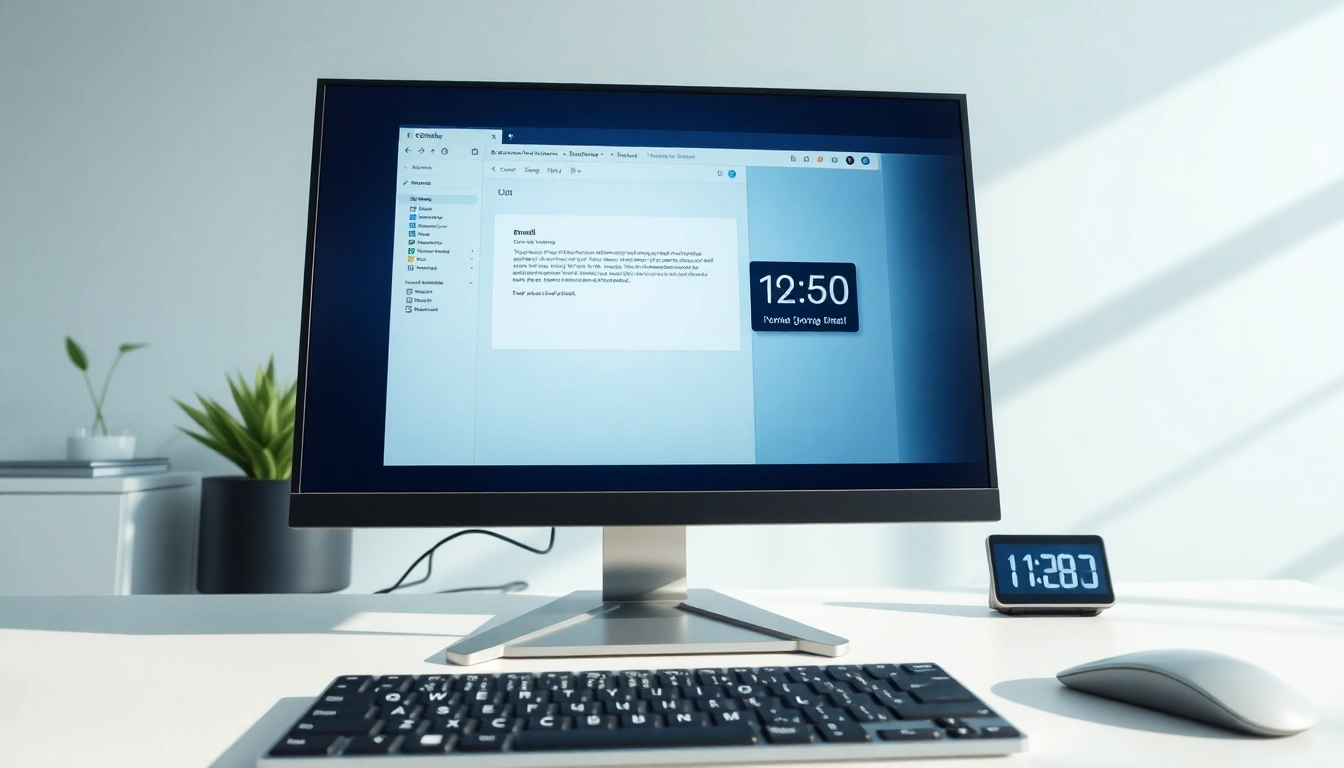
An email timer is a tool integrated into email platforms, most notably Gmail, which allows users to schedule emails to be sent at a later date and time. This means you can compose an email whenever it's convenient for you while ensuring that it reaches the recipient at a pre-selected time. The timer serves not just to remind you of the scheduling logistics but also places you in control of your communications, helping to tailor the timing of your correspondence based on the recipient’s time zone or likely availability.
Benefits of Using an Email Timer in Gmail
The email timer in Gmail offers several advantages:
- Increased Flexibility: You can write emails at your convenience, irrespective of whether it's the right time to send them.
- Improved Timing: Sending messages at strategic times can increase the chances of your emails being read. For example, scheduling emails to land in inboxes during business hours ensures they’re more likely to be seen.
- Work-Life Balance: Set boundaries by preparing emails after hours but scheduling them for the next morning, allowing you to detach from work at the end of your day.
- Management of Bulk Emails: When dealing with a high volume of communication, scheduling a batch of emails can save time and streamline processes.
How Email Timers Compare to Traditional Scheduling
Traditional scheduling usually involves sending emails immediately or significantly delaying sending in real-time. Email timers extend this concept, allowing you to set specific delivery times based on your preferences and the audience's optimal engagement times. Unlike traditional methods, using an email timer helps you avoid the inefficiencies that come from potentially bombarding your inbox immediately and instead allows for a more strategic approach to communication.
Step-by-Step Guide to Setting Up an Email Timer in Gmail
Setting up an email timer in Gmail is straightforward and can be completed in a few easy steps. Below, we will provide a detailed guide along with best practices to enhance your scheduling proficiency.
Accessing the Email Timer Functionality
To access the email timer feature, follow these steps:
- Log in to your Gmail account.
- Click on the Compose button to open a new message window.
- Compose your email as you normally would, including the recipient’s address, subject line, and body text.
- Click the small downward-facing arrow next to the Send button.
- Select Schedule send from the dropdown menu.
- Choose a date and time for your email to be sent, or click Pick date & time for more options.
- After setting your desired schedule, click Schedule send to finalize.
Composing Your Email with a Timer
While composing your email, consider the following tips for maximizing impact:
- Craft a Compelling Subject Line: The subject line is crucial for grabbing attention. Make it clear and engaging to improve open rates.
- Know Your Audience: Timing can differ based on the audience. For example, industry professionals may prefer emails during work hours, while clients may engage better during evenings.
- Use Personalization: Tailor your email content to make it more relatable, which can enhance engagement upon delivery.
- Insert Follow-Up Reminders: If your email requires action, consider scheduling a follow-up reminder for yourself.
Best Practices for Email Timing
While using the email timer feature, adhere to the following best practices:
- Test various timings to determine when emails receive the highest engagement, adjusting based on your findings.
- Enable recipient tracking if available, to gather insights on open and response rates of scheduled emails.
- Be mindful of public holidays and industry specifics, as they can influence the effectiveness of your scheduled emails.
Advanced Email Timer Features to Explore
In addition to the basic functionalities of the email timer feature, Gmail also provides advanced options for users who want to maximize their email strategies further.
Using Countdown Timers for Email Engagement
Engagement can be significantly boosted by incorporating countdown timers within your emails to create a sense of urgency. This visual tool informs recipients of upcoming deadlines, promotions, or critical updates:
- Select a countdown timer tool that generates a countdown image or embed code.
- In your Gmail compose window, click on the Insert Photos icon.
- Choose Web Address (URL) tab, and paste the countdown timer URL.
- Insert the timer into your email and resize as needed.
Recurring Emails through Timers
Sending emails on a recurring schedule can be highly beneficial for tasks such as newsletters or calendar reminders. To achieve this, consider using third-party Gmail extensions like Boomerang or similar tools to set up regular email dispatches efficiently. Here’s how:
- Choose a third-party scheduling tool like Boomerang for Gmail.
- Install the required extension from the Google Workspace Marketplace.
- Compose your email within the tool and designate a recurring time frame for sending (daily, weekly, etc.).
- Save your settings, and enjoy hassle-free automated sending!
Integrating Third-party Tools with Gmail
Maximize your email timer functionality by integrating third-party applications. Tools including MailTrack, which tracks email openings, and scheduling apps like SendLater enhance the basic Gmail functionality:
- Research and select third-party tools that provide additional scheduling and tracking features.
- Follow specific installation instructions to link compatible services with your Gmail account.
- Utilize these tools to improve your email engagement and effectiveness.
Common Challenges When Using Email Timers
Despite their benefits, using email timers is not without challenges. Below, we outline common obstacles and solutions you can implement to overcome them.
Overcoming Time Zone Issues
Global communication requires us to consider time zone differences. One mistake could lead to your email arriving after business hours or on a non-working day. Here are some strategies:
- Be aware of the recipient's time zone and adjust your schedule accordingly. Tools like time zone converters can assist in this.
- Use specific expressions in your emails (like “nyc time” or “GMT+2”) to make it clear when your email is meant to be timed.
Managing Email Delivery Delays
Sometimes, emails may not be delivered at the scheduled time due to technical issues or high traffic on email servers. To mitigate this:
- Double-check the scheduled time for your email in the draft section.
- Monitor your sent folder for confirmation on email dispatch.
- Consider sending a follow-up as necessary to confirm receipt.
Troubleshooting Common Problems
If you encounter unexpected issues with scheduled emails, here’s how to troubleshoot them:
- Check for any software updates on Gmail, as outdated versions might cause bugs.
- Revisit your email timer settings to ensure everything is configured correctly.
- Contact Gmail support for persistent issues to obtain professional assistance and solutions.
Tracking the Impact of Email Timers on Your Productivity
Utilizing an email timer can enhance productivity, but it's crucial to track its effectiveness. Below are methods for assessing how successful your scheduling strategies are.
Metrics for Evaluating Email Schedule Effectiveness
To measure your email timer’s impact, evaluate key performance metrics:
- Open Rates: Track how many recipients opened your emails and identify patterns based on send times.
- Response Rates: Understand which scheduled emails elicit responses and if timing influenced that outcome.
- Click-Through Rates: If links are included in your email, measure how often recipients clicked on those.
Improving Response Rates with Timed Emails
As you gather data on your emailed communications, analyze them for insights that can help improve response rates:
- Refine your scheduling based on prior open and response rates.
- Regularly adjust your content style and subjects to align with observed preferences and engage your audience better.
Adapting Strategies Based on Performance Data
Being adaptable is key to improving your email marketing strategies:
- Adjust your scheduling based on seasonal trends or organizational changes.
- Test A/B campaigns to explore different sending times and formats to optimize your strategy.